Troubleshooting Workflows
Debugging is a critical skill that can save you hours of frustration and help you become a more effective Nextflow developer. Throughout your career, especially when you're starting out, you'll encounter bugs while building and maintaining your workflows. Learning systematic debugging approaches will help you identify and resolve issues quickly.
Learning goals
In this side quest, we'll explore systematic debugging techniques for Nextflow workflows:
- Syntax error debugging: Using IDE features and Nextflow error messages effectively
- Channel debugging: Diagnosing data flow issues and channel structure problems
- Process debugging: Investigating execution failures and resource issues
- Built-in debugging tools: Leveraging Nextflow's preview mode, stub running, and work directories
- Systematic approaches: A four-phase methodology for efficient debugging
By the end, you'll have a robust debugging methodology that transforms frustrating error messages into clear roadmaps for solutions.
Prerequisites
Before taking on this side quest, you should:
- Have completed the Hello Nextflow tutorial or equivalent beginner's course.
- Be comfortable using basic Nextflow concepts and mechanisms (processes, channels, operators)
Optional: We recommend completing the IDE Features for Nextflow Development side quest first. That covers comprehensive coverage of IDE features that support debugging (syntax highlighting, error detection, etc.), which we'll use heavily here.
0. Get started
Open the training codespace
If you haven't yet done so, make sure to open the training environment as described in the Environment Setup.

Move into the project directory
Let's move into the directory where the files for this tutorial are located.
You can set VSCode to focus on this directory:
Review the materials
You'll find a set of example workflows with various types of bugs that we'll use for practice:
Directory contents
.
├── bad_bash_var.nf
├── bad_channel_shape.nf
├── bad_channel_shape_viewed_debug.nf
├── bad_channel_shape_viewed.nf
├── bad_number_inputs.nf
├── badpractice_syntax.nf
├── bad_resources.nf
├── bad_syntax.nf
├── buggy_workflow.nf
├── data
│   ├── sample_001.fastq.gz
│   ├── sample_002.fastq.gz
│   ├── sample_003.fastq.gz
│   ├── sample_004.fastq.gz
│   ├── sample_005.fastq.gz
│   └── sample_data.csv
├── exhausted.nf
├── invalid_process.nf
├── missing_output.nf
├── missing_software.nf
├── missing_software_with_stub.nf
├── nextflow.config
└── no_such_var.nf
These files represent common debugging scenarios you'll encounter in real-world development.
Review the assignment
Your challenge is to run each workflow, identify the error(s), and fix them.
For each buggy workflow:
- Run the workflow and observe the error
- Analyze the error message: what is Nextflow telling you?
- Locate the problem in the code using the clues provided
- Fix the bug and verify your solution works
- Reset the file before moving to the next section (use
git checkout <filename>)
The exercises progress from simple syntax errors to more subtle runtime issues. Solutions are discussed inline, but try to solve each one yourself before reading ahead.
Readiness checklist
Think you're ready to dive in?
- I understand the goal of this course and its prerequisites
- My codespace is up and running
- I've set my working directory appropriately
- I understand the assignment
If you can check all the boxes, you're good to go.
1. Syntax Errors
Syntax errors are the most common type of error you'll encounter when writing Nextflow code. They occur when the code does not conform to the expected syntax rules of the Nextflow DSL. These errors prevent your workflow from running at all, so it's important to learn how to identify and fix them quickly.
1.1. Missing braces
One of the most common syntax errors, and sometimes one of the more complex ones to debug is missing or mismatched brackets.
Let's start with a practical example.
Run the pipeline
Command output
Key elements of syntax error messages:
- File and location: Shows which file and line/column contain the error (
bad_syntax.nf:24:1) - Error description: Explains what the parser found that it didn't expect (
Unexpected input: '<EOF>') - EOF indicator: The
<EOF>(End Of File) message indicates the parser reached the end of the file while still expecting more content - a classic sign of unclosed braces
Check the code
Now, let's examine bad_syntax.nf to understand what's causing the error:
For the purpose of this example we've left a comment for you to show where the error is. The Nextflow VSCode extension should also be giving you some hints about what might be wrong, putting the mismatched brace in red and highlighting the premature end of the file:
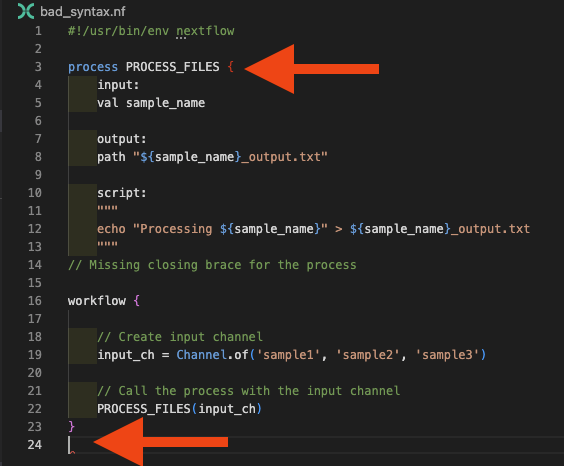
Debugging strategy for bracket errors:
- Use VS Code's bracket matching (place cursor next to a bracket)
- Check the Problems panel for bracket-related messages
- Ensure each opening
{has a corresponding closing}
Fix the code
Replace the comment with the missing closing brace:
Run the pipeline
Now run the workflow again to confirm it works:
Command output
1.2. Using incorrect process keywords or directives
Another common syntax error is an invalid process definition. This can happen if you forget to define required blocks or use incorrect directives in the process definition.
Run the pipeline
Command output
N E X T F L O W ~ version 26.04.4
Launching `invalid_process.nf` [astonishing_pesquet] revision: f42559404a
Error invalid_process.nf:3:1: Invalid process definition -- check for missing or out-of-order section labels
│ 3 | process PROCESS_FILES {
│ | ^^^^^^^^^^^^^^^^^^^^^^^
│ 4 | inputs:
│ 5 | val sample_name
│ 6 |
╰ 7 | output:
ERROR ~ Script compilation failed
-- Check '.nextflow.log' file for details
Check the code
The error indicates an "Invalid process definition" and shows the context around the problem. Looking at lines 3-7, we can see inputs: on line 4, which is the issue. Let's examine invalid_process.nf:
Looking at line 4 in the error context, we can spot the issue: we're using inputs instead of the correct input directive. The Nextflow VSCode extension will also flag this:
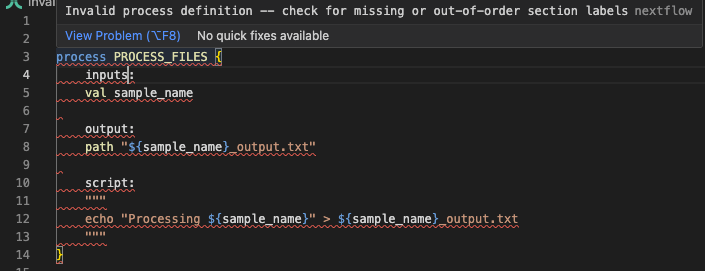
Fix the code
Replace the incorrect keyword with the correct one by referencing the documentation:
Run the pipeline
Now run the workflow again to confirm it works:
Command output
1.3. Using bad variable names
The variable names you use in your script blocks must be valid, derived either from inputs or from groovy code inserted before the script. But when you're wrangling complexity at the start of pipeline development, it's easy to make mistakes in variable naming, and Nextflow will let you know quickly.
Run the pipeline
Command output
N E X T F L O W ~ version 26.04.4
Launching `no_such_var.nf` [spontaneous_pasteur] revision: 0c4d3bc28c
Error no_such_var.nf:17:39: `undefined_var` is not defined
│ 17 | echo "Using undefined variable: ${undefined_var}" >> ${output_pref
╰ | ^^^^^^^^^^^^^
ERROR ~ Script compilation failed
-- Check '.nextflow.log' file for details
The error is caught at compile time and points directly to the undefined variable on line 17, with a caret indicating exactly where the problem is.
Check the code
Let's examine no_such_var.nf:
The error message indicates that the variable is not recognized in the script template, and there you go- you should be able to see ${undefined_var} used in the script block, but not defined elsewhere.
Fix the code
If you get a 'No such variable' error, you can fix it by either defining the variable (by correcting input variable names or editing groovy code before the script), or by removing it from the script block if it's not needed:
Run the pipeline
Now run the workflow again to confirm it works:
Command output
1.4. Bad use of Bash variables
Starting out in Nextflow, it can be difficult to understand the difference between Nextflow (Groovy) and Bash variables. This can generate another form of the bad variable error that appears when trying to use variables in the Bash content of the script block.
Run the pipeline
Command output
Check the code
The error points to line 13 where ${prefix} is used. Let's examine bad_bash_var.nf to see what's causing the issue:
| bad_bash_var.nf | |
|---|---|
In this example, we're defining the prefix variable in Bash, but in a Nextflow process the $ syntax we used to refer to it (${prefix}) is interpreted as a Groovy variable, not Bash. The variable doesn't exist in the Groovy context, so we get a 'no such variable' error.
Fix the code
If you want to use a Bash variable, you must escape the dollar sign like this:
| bad_bash_var.nf | |
|---|---|
This tells Nextflow to interpret this as a Bash variable.
Run the pipeline
Now run the workflow again to confirm it works:
Command output
Groovy vs Bash Variables
For simple variable manipulations like string concatenation or prefix/suffix operations, it's usually more readable to use Groovy variables in the script section rather than Bash variables in the script block:
This approach avoids the need to escape dollar signs and makes the code easier to read and maintain.
1.5. Statements Outside Workflow Block
The Nextflow VSCode extension highlights issues with code structure that will cause errors. A common example is defining channels outside of the workflow {} block - this is now enforced as a syntax error.
Run the pipeline
Command output
N E X T F L O W ~ version 26.04.4
Launching `badpractice_syntax.nf` [fervent_miescher] revision: 5e4b291bde
Error badpractice_syntax.nf:3:1: Statements cannot be mixed with script declarations -- move statements into a process, workflow, or function
│ 3 | input_ch = channel.of('sample1', 'sample2', 'sample3')
╰ | ^^^^^^^^^^^^^^^^^^^^^^^^^^^^^^^^^^^^^^^^^^^^^^^^^^^^^^
ERROR ~ Script compilation failed
-- Check '.nextflow.log' file for details
The error message clearly indicates the problem: statements (like channel definitions) cannot be mixed with script declarations outside of a workflow or process block.
Check the code
Let's examine badpractice_syntax.nf to see what's causing the error:
The VSCode extension will also highlight the input_ch variable as being defined outside the workflow block:
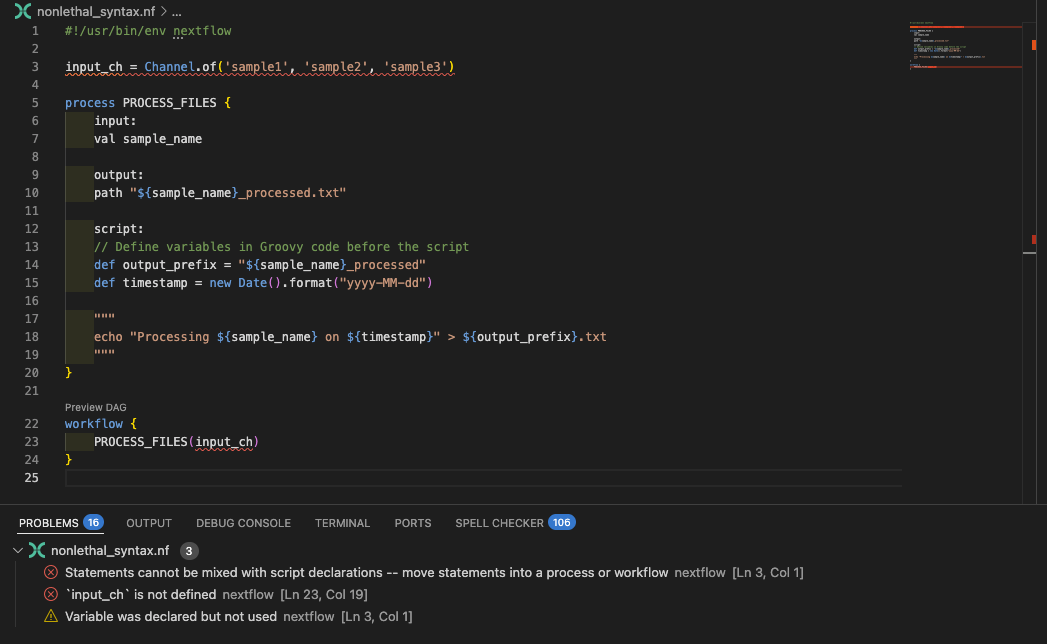
Fix the code
Move the channel definition inside the workflow block:
Run the pipeline
Run the workflow again to confirm the fix works:
Command output
Keep your input channels defined within the workflow block, and in general follow any other recommendations the extension makes.
Takeaway
You can systematically identify and fix syntax errors using Nextflow error messages and IDE visual indicators. Common syntax errors include missing braces, incorrect process keywords, undefined variables, and improper use of Bash vs. Nextflow variables. The VSCode extension helps catch many of these before runtime. With these syntax debugging skills in your toolkit, you'll be able to quickly resolve the most common Nextflow syntax errors and move on to tackling more complex runtime issues.
What's next?
Learn to debug more complex channel structure errors that occur even when syntax is correct.
2. Channel Structure Errors
Channel structure errors are more subtle than syntax errors because the code is syntactically correct, but the data shapes don't match what processes expect. Nextflow will try to run the pipeline, but might find that the number of inputs doesn't match what it expects and fail. These errors typically only appear at runtime and require an understanding of the data flowing through your workflow.
Debugging Channels with .view()
Throughout this section, remember that you can use the .view() operator to inspect channel content at any point in your workflow. This is one of the most powerful debugging tools for understanding channel structure issues. We'll explore this technique in detail in section 2.4, but feel free to use it as you work through the examples.
2.1. Wrong Number of Input Channels
This error occurs when you pass a different number of channels than a process expects.
Run the pipeline
Command output
N E X T F L O W ~ version 26.04.4
Launching `bad_number_inputs.nf` [desperate_carson] revision: d83e58dcd3
Error bad_number_inputs.nf:23:5: Incorrect number of call arguments, expected 1 but received 2
│ 23 | PROCESS_FILES(samples_ch, files_ch)
╰ | ^^^^^^^^^^^^^^^^^^^^^^^^^^^^^^^^^^^
ERROR ~ Script compilation failed
-- Check '.nextflow.log' file for details
Check the code
The error message clearly states that the call expected 1 argument but received 2, and points to line 23. Let's examine bad_number_inputs.nf:
You should see the mismatched PROCESS_FILES call, supplying multiple input channels when the process only defines one. The VSCode extension will also under line process call in red, and supply a diagnostic message when you mouse over:
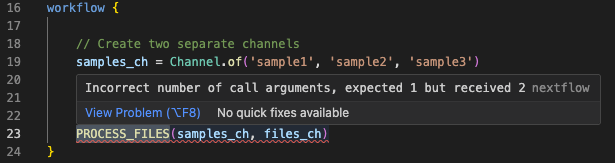
Fix the code
For this specific example, the process expects a single channel and doesn't require the second channel, so we can fix it by passing only the samples_ch channel:
Run the pipeline
Command output
More commonly than this example, you might add additional inputs to a process and forget to update the workflow call accordingly, which can lead to this type of error. Fortunately, this is one of the easier-to-understand and fix errors, as the error message is quite clear about the mismatch.
2.2. Channel Exhaustion (Process Runs Fewer Times Than Expected)
Some channel structure errors are much more subtle and produce no errors at all. Probably the most common of these reflects a challenge that new Nextflow users face in understanding that queue channels can be exhausted and run out of items, meaning the workflow finishes prematurely.
Run the pipeline
Command output
This workflow completes without error, but it only processes a single sample!
Check the code
Let's examine exhausted.nf to see if that's right:
The process only runs once instead of three times because the reference_ch channel is a queue channel that gets exhausted after the first process execution. When one channel is exhausted, the entire process stops, even if other channels still have items.
This is a common pattern where you have a single reference file that needs to be reused across multiple samples. The solution is to convert the reference channel to a value channel that can be reused indefinitely.
Fix the code
There are a couple of ways to address this depending on how many files are affected.
Option 1: You have a single reference file that you are re-using a lot. You can simply create a value channel type, which can be used over and over again. There are three ways to do this:
1a Use channel.value():
| exhausted.nf (fixed - Option 1a) | |
|---|---|
1b Use the first() operator:
| exhausted.nf (fixed - Option 1b) | |
|---|---|
1c. Use the collect() operator:
| exhausted.nf (fixed - Option 1c) | |
|---|---|
Option 2: In more complex scenarios, perhaps where you have multiple reference files for all samples in the sample channel, you can use the combine operator to create a new channel that combines the two channels into tuples:
| exhausted.nf (fixed - Option 2) | |
|---|---|
The .combine() operator generates a cartesian product of the two channels, so each item in reference_ch will be paired with each item in input_ch. This allows the process to run for each sample while still using the reference.
This requires the process input to be adjusted. In our example, the start of the process definition would need to be adjusted as follows:
| exhausted.nf (fixed - Option 2) | |
|---|---|
This approach may not be suitable in all situations.
Run the pipeline
Try one of the fixes above and run the workflow again:
Command output
You should now see all three samples being processed instead of just one.
2.3. Wrong Channel Content Structure
When workflows reach a certain level of complexity, it can be a little difficult to keep track of the internal structures of each channel, and people commonly generate mismatches between what the process expects and what the channel actually contains. This is more subtle than the issue we discussed earlier, where the number of channels was incorrect. In this case, you can have the correct number of input channels, but the internal structure of one or more of those channels doesn't match what the process expects.
Run the pipeline
Command output
N E X T F L O W ~ version 26.04.4
Launching `bad_channel_shape.nf` [disturbed_hilbert] revision: 3046f86036
executor > local (3)
[13/2d7cf7] PROCESS_FILES (2) | 0 of 3 ✘
ERROR ~ Error executing process > 'PROCESS_FILES (1)'
Caused by:
Missing output file(s) `[sample1, file1.txt]_output.txt` expected by process `PROCESS_FILES (1)`
Command executed:
echo "Processing [sample1, file1.txt]" > [sample1, file1.txt]_output.txt
Command exit status:
0
Command output:
(empty)
Work dir:
/workspaces/training/side-quests/debugging/work/fc/20d7bd091eb9f7f63b76ab3a802cac
Tip: when you have fixed the problem you can continue the execution adding the option `-resume` to the run command line
-- Check '.nextflow.log' file for details
Check the code
The square brackets in the error message provide the clue here - the process is treating the tuple as a single value, which is not what we want. Let's examine bad_channel_shape.nf:
You can see that we're generating a channel composed of tuples: ['sample1', 'file1.txt'], but the process expects a single value, val sample_name. The command executed shows that the process is trying to create a file named [sample3, file3.txt]_output.txt, which is not the intended output.
Fix the code
To fix this, if the process requires both inputs we could adjust the process to accept a tuple:
Run the pipeline
Pick one of the solutions and re-run the workflow:
Command output
2.4. Channel Debugging Techniques
Using .view() for Channel Inspection
The most powerful debugging tool for channels is the .view() operator. With .view(), you can understand the shape of your channels at all stages to help with debugging.
Run the pipeline
Run bad_channel_shape_viewed.nf to see this in action:
Command output
N E X T F L O W ~ version 26.04.4
Launching `bad_channel_shape_viewed.nf` [sleepy_cajal] revision: 03e79cdbad
executor > local (3)
[dc/6e5c24] PROCESS_FILES (2) | 3 of 3 ✔
Channel content: [sample1, file1.txt]
Channel content: [sample2, file2.txt]
Channel content: [sample3, file3.txt]
After mapping: sample1
After mapping: sample2
After mapping: sample3
Check the code
Let's examine bad_channel_shape_viewed.nf to see how .view() is used:
Fix the code
To save you from using .view() operations excessively in future to understand channel content, it's advisable to add some comments to help:
| bad_channel_shape_viewed.nf (with comments) | |
|---|---|
This will become more important as your workflows grow in complexity and channel structure becomes more opaque.
Run the pipeline
Command output
N E X T F L O W ~ version 26.04.4
Launching `bad_channel_shape_viewed.nf` [marvelous_koch] revision: 03e79cdbad
executor > local (3)
[dc/6e5c24] PROCESS_FILES (2) | 3 of 3 ✔
Channel content: [sample1, file1.txt]
Channel content: [sample2, file2.txt]
Channel content: [sample3, file3.txt]
After mapping: sample1
After mapping: sample2
After mapping: sample3
Takeaway
Many channel structure errors can be created with valid Nextflow syntax. You can debug channel structure errors by understanding data flow, using .view() operators for inspection, and recognizing error message patterns like square brackets indicating unexpected tuple structures.
What's next?
Learn about errors created by process definitions.
3. Process Structure Errors
Most of the errors you encounter related to processes will related to mistakes you have made in forming the command, or to issues related to the underlying software. That said, similarly to the channel issues above, you can make mistakes in the process definition that don't quality as syntax errors, but which will cause errors at run time.
3.1. Missing Output Files
One common error when writing processes is to do something that generates a mismatch between what the process expects and what is generated.
Run the pipeline
Command output
N E X T F L O W ~ version 26.04.4
Launching `missing_output.nf` [evil_gilbert] revision: 3d5117f7e2
executor > local (3)
[45/146e39] PROCESS_FILES (1) | 0 of 3 ✘
ERROR ~ Error executing process > 'PROCESS_FILES (3)'
Caused by:
Missing output file(s) `sample3.txt` expected by process `PROCESS_FILES (3)`
Command executed:
echo "Processing sample3" > sample3_output.txt
Command exit status:
0
Command output:
(empty)
Work dir:
/workspaces/training/side-quests/debugging/work/2b/85afc51ff8d820df3b97b8a7154a30
Tip: you can try to figure out what's wrong by changing to the process work dir and showing the script file named `.command.sh`
-- Check '.nextflow.log' file for details
Check the code
The error message indicates that the process expected to produce an output file named sample3.txt, but the script actually creates sample3_output.txt. Let's examine the process definition in missing_output.nf:
| missing_output.nf | |
|---|---|
You should see that there is a mismatch between the output file name in the output: block, and the one used in the script. This mismatch causes the process to fail. If you encounter this sort of error, go back and check that the outputs match between your process definition and your output block.
If the problem still isn't clear, check the work directory itself to identify the actual output files created:
For this example this would highlight to us that a _output suffix is being incorporated into the output file name, contrary to our output: definition.
Fix the code
Fix the mismatch by making the output filename consistent:
Run the pipeline
Command output
3.2. Missing software
Another class of errors occurs due to mistakes in software provisioning. missing_software.nf is a syntactically valid workflow, but it depends on some external software to provide the cowpy command it uses.
Run the pipeline
Command output
ERROR ~ Error executing process > 'PROCESS_FILES (2)'
Caused by:
Process `PROCESS_FILES (2)` terminated with an error exit status (127)
Command executed:
cowpy sample2 > sample2_output.txt
Command exit status:
127
Command output:
(empty)
Command error:
.command.sh: line 2: cowpy: command not found
Work dir:
/workspaces/training/side-quests/debugging/work/2f/bcf8fad6fd101c76950c92062ce299
Tip: when you have fixed the problem you can continue the execution adding the option `-resume` to the run command line
-- Check '.nextflow.log' file for details
The process doesn't have access to the command we're specifying. Sometimes this is because a script is present in the workflow bin directory, but has not been made executable. Other times it is because the software is not installed in the container or environment where the workflow is running.
Check the code
Look out for that 127 exit code - it tells you exactly the problem. Let's examine missing_software.nf:
| missing_software.nf | |
|---|---|
Fix the code
We've been a little disingenuous here, and there's actually nothing wrong with the code. We just need to specify the necessary configuration to run the process in such a way that it has access to the command in question. In this case the process has a container definition, so all we need to do is run the workflow with Docker enabled.
Run the pipeline
We've set up a Docker profile for you in nextflow.config, so you can run the workflow with:
Command output
Note
To learn more about how Nextflow uses containers, see Hello Nextflow
3.3. Bad resource configuration
In production usage, you'll be configuring resources on your processes. For example memory defines the maximum amount of memory available to your process, and if the process exceeds that, your scheduler will typically kill the process and return an exit code of 137. We can't demonstrate that here because we're using the local executor, but we can show something similar with time.
Run the pipeline
bad_resources.nf has process configuration with an unrealistic bound on time of 1 millisecond:
Command output
N E X T F L O W ~ version 26.04.4
Launching `bad_resources.nf` [curious_escher] revision: e6e544e786
executor > local (3)
[83/c8c4af] PROCESS_FILES (2) | 0 of 3
WARN: Killing running tasks (2)
ERROR ~ Error executing process > 'PROCESS_FILES (1)'
Caused by:
process hasn't exited
-- Check '.nextflow.log' file for details
Check the code
Let's examine bad_resources.nf:
We know the process will take longer than a second (we've added a sleep in there to make sure), but the process is set to time out after 1 millisecond. Someone has been a little unrealistic with their configuration!
Fix the code
Increase the time limit to a realistic value:
| bad_resources.nf | |
|---|---|
Run the pipeline
Command output
On the local executor the error is less explicit than it would be on a scheduler: you get process hasn't exited and WARN: Killing running tasks rather than a message that names the time limit. The connection to make is that Nextflow kills a task when it overruns the resources you gave it, so when a process is terminated without a script-level error, check its resource directives. Here the culprit is the time directive, which is far too low for the work the process does. Make sure you understand the resource requirements of the commands you are running so that you can configure your resource directives appropriately.
3.4. Process Debugging Techniques
When processes fail or behave unexpectedly, you need systematic techniques to investigate what went wrong. The work directory contains all the information you need to debug process execution.
Using Work Directory Inspection
The most powerful debugging tool for processes is examining the work directory. When a process fails, Nextflow creates a work directory for that specific process execution containing all the files needed to understand what happened.
Run the pipeline
Let's use the missing_output.nf example from earlier to demonstrate work directory inspection (re-generate an output naming mismatch if you need to):
Command output
N E X T F L O W ~ version 26.04.4
Launching `missing_output.nf` [irreverent_payne] revision: 3d5117f7e2
executor > local (3)
[f0/42f283] PROCESS_FILES (2) | 0 of 3 ✘
ERROR ~ Error executing process > 'PROCESS_FILES (2)'
Caused by:
Missing output file(s) `sample2.txt` expected by process `PROCESS_FILES (2)`
Command executed:
echo "Processing sample2" > sample2_output.txt
Command exit status:
0
Command output:
(empty)
Work dir:
/workspaces/training/side-quests/debugging/work/f0/42f283a25543dad8d56b192e314f41
Tip: you can try to figure out what's wrong by changing to the process work dir and showing the script file named `.command.sh`
-- Check '.nextflow.log' file for details
Check the work directory
When you get this error, the work directory contains all the debugging information. Find the work directory path from the error message and examine its contents:
You can then examine the key files:
Check the Command Script
The .command.sh file shows exactly what command was executed:
This reveals:
- Variable substitution: Whether Nextflow variables were properly expanded
- File paths: Whether input files were correctly located
- Command structure: Whether the script syntax is correct
Common issues to look for:
- Missing quotes: Variables containing spaces need proper quoting
- Wrong file paths: Input files that don't exist or are in wrong locations
- Incorrect variable names: Typos in variable references
- Missing environment setup: Commands that depend on specific environments
Check Error Output
The .command.err file contains the actual error messages:
This file will show:
- Exit codes: 127 (command not found), 137 (killed), etc.
- Permission errors: File access issues
- Software errors: Application-specific error messages
- Resource errors: Memory/time limit exceeded
Check Standard Output
The .command.out file shows what your command produced:
This helps verify:
- Expected output: Whether the command produced the right results
- Partial execution: Whether the command started but failed partway through
- Debug information: Any diagnostic output from your script
Check the Exit Code
The .exitcode file contains the exit code for the process:
Common exit codes and their meanings:
- Exit code 127: Command not found - check software installation
- Exit code 137: Process killed - check memory/time limits
Check File Existence
When processes fail due to missing output files, check what files were actually created:
This helps identify:
- File naming mismatches: Output files with different names than expected
- Permission issues: Files that couldn't be created
- Path problems: Files created in wrong directories
In our example earlier, this confirmed to us that while our expected sample3.txt wasn't present, sample3_output.txt was:
Takeaway
Process debugging requires examining work directories to understand what went wrong. Key files include .command.sh (the executed script), .command.err (error messages), and .command.out (standard output). Exit codes like 127 (command not found) and 137 (process killed) provide immediate diagnostic clues about the type of failure.
What's next?
Learn about Nextflow's built-in debugging tools and systematic approaches to troubleshooting.
4. Built-in Debugging Tools and Advanced Techniques
Nextflow provides several powerful built-in tools for debugging and analyzing workflow execution. These tools help you understand what went wrong, where it went wrong, and how to fix it efficiently.
4.1. Real-time Process Output
Sometimes you need to see what's happening inside running processes. You can enable real-time process output, which shows you exactly what each task is doing as it executes.
Run the pipeline
bad_channel_shape_viewed.nf from our earlier examples printed channel content using .view(), but we can also use the debug directive to echo variables from within the process itself, which we demonstrate in bad_channel_shape_viewed_debug.nf. Run the workflow:
Command output
N E X T F L O W ~ version 26.04.4
Launching `bad_channel_shape_viewed_debug.nf` [infallible_shirley] revision: 37cbda227b
executor > local (3)
[a1/59e59a] PROCESS_FILES (3) | 3 of 3 ✔
Channel content: [sample1, file1.txt]
Channel content: [sample2, file2.txt]
Channel content: [sample3, file3.txt]
After mapping: sample1
After mapping: sample2
After mapping: sample3
Sample name inside process is sample1
Sample name inside process is sample2
Sample name inside process is sample3
Check the code
Let's examine bad_channel_shape_viewed_debug.nf to see how the debug directive works:
| bad_channel_shape_viewed_debug.nf | |
|---|---|
The debug directive can be a quick and convenient way to understand the environment of a process.
4.2. Preview Mode
Sometimes you want to catch problems before any processes run. Nextflow provides a flag for this kind of proactive debugging: -preview.
Run the pipeline
The preview mode lets you test workflow logic without executing commands. This can be quite useful for quickly checking the structure of your workflow and ensuring that processes are connected correctly without running any actual commands.
Note
If you fixed bad_syntax.nf earlier, reintroduce the syntax error by removing the closing brace after the script block before running this command.
Run this command:
Command output
Preview mode is particularly useful for catching syntax errors early without running any processes. It validates the workflow structure and process connections before execution.
4.3. Stub Running for Logic Testing
Sometimes errors are difficult to debug because commands take too long, require special software, or fail for complex reasons. Stub running lets you test workflow logic without executing the actual commands.
Run the pipeline
When you're developing a Nextflow process, you can use the stub directive to define 'dummy' commands that generate outputs of the correct form without running the real command. This approach is particularly valuable when you want to verify that your workflow logic is correct before dealing with the complexities of the actual software.
For example, remember our missing_software.nf from earlier? The one where we had missing software that prevented the workflow running until we added -profile docker? missing_software_with_stub.nf is a very similar workflow. If we run it in the same way, we will generate the same error:
Command output
ERROR ~ Error executing process > 'PROCESS_FILES (3)'
Caused by:
Process `PROCESS_FILES (3)` terminated with an error exit status (127)
Command executed:
cowpy sample3 > sample3_output.txt
Command exit status:
127
Command output:
(empty)
Command error:
.command.sh: line 2: cowpy: command not found
Work dir:
/workspaces/training/side-quests/debugging/work/cd/b8686a0d27df5be779a38fed616d01
Tip: you can replicate the issue by changing to the process work dir and entering the command `bash .command.run`
-- Check '.nextflow.log' file for details
However, this workflow will not produce errors if we run it with -stub-run, even without the docker profile:
Command output
Check the code
Let's examine missing_software_with_stub.nf:
| missing_software.nf (with stub) | |
|---|---|
Relative to missing_software.nf, this process has a stub: directive specifying a command to be used instead of the one specified in script:, in the event that that Nextflow is run in stub mode.
The touch command we're using here doesn't depend on any software or appropriate inputs, and will run in all situations, allowing us to debug workflow logic without worrying about the process internals.
Stub running helps debug:
- Channel structure and data flow
- Process connections and dependencies
- Parameter propagation
- Workflow logic without software dependencies
4.4. Systematic Debugging Approach
Now that you've learned individual debugging techniques - from trace files and work directories to preview mode, stub running, and resource monitoring - let's tie them together into a systematic methodology. Having a structured approach prevents you from getting overwhelmed by complex errors and ensures you don't miss important clues.
This methodology combines all the tools we've covered into an efficient workflow:
Four-Phase Debugging Method:
Phase 1: Syntax Error Resolution (5 minutes)
- Check for red underlines in VSCode or your IDE
- Run
nextflow run workflow.nf -previewto identify syntax issues - Fix all syntax errors (missing braces, trailing commas, etc.)
- Ensure the workflow parses successfully before proceeding
Phase 2: Quick Assessment (5 minutes)
- Read runtime error messages carefully
- Check if it's a runtime, logic, or resource error
- Use preview mode to test basic workflow logic
Phase 3: Detailed Investigation (15-30 minutes)
- Find the work directory of the failed task
- Examine log files
- Add
.view()operators to inspect channels - Use
-stub-runto test workflow logic without execution
Phase 4: Fix and Validate (15 minutes)
- Make minimal targeted fixes
- Test with resume:
nextflow run workflow.nf -resume - Verify complete workflow execution
Using Resume for Efficient Debugging
Once you've identified a problem, you need an efficient way to test your fixes without wasting time re-running successful parts of your workflow. Nextflow's -resume functionality is invaluable for debugging.
You will have encountered -resume if you've worked through Hello Nextflow, and it's important that you make good use of it when debugging to save yourself waiting while the processes before your problem process run.
Resume debugging strategy:
- Run workflow until failure
- Examine work directory for failed task
- Fix the specific issue
- Resume to test only the fix
- Repeat until workflow completes
Debugging Configuration Profile
To make this systematic approach even more efficient, you can create a dedicated debugging configuration that automatically enables all the tools you need:
| nextflow.config (debug profile) | |
|---|---|
Then you can run the pipeline with this profile enabled:
This profile enables real-time output, preserves work directories, and limits parallelization for easier debugging.
4.5. Practical Debugging Exercise
Now it's time to put the systematic debugging approach into practice. The workflow buggy_workflow.nf contains several common errors that represent the types of issues you'll encounter in real-world development.
Exercise
Use the systematic debugging approach to identify and fix all errors in buggy_workflow.nf. This workflow attempts to process sample data from a CSV file but contains multiple intentional bugs representing common debugging scenarios.
Start by running the workflow to see the first error:
Command output
N E X T F L O W ~ version 26.04.4
Launching `buggy_workflow.nf` [happy_aryabhata] revision: 6a296ff695
Error buggy_workflow.nf:25:12: Unexpected input: '\n'
│ 25 | script:
╰ | ^
ERROR ~ Script compilation failed
-- Check '.nextflow.log' file for details
The parser points at line 25 (script:), but the real culprit is just above it: the trailing comma after the output: declaration on line 23 leaves the parser expecting another output, so it fails when it reaches script:. This is the first of several syntax errors to work through.
Apply the four-phase debugging method you've learned:
Phase 1: Syntax Error Resolution
- Check for red underlines in VSCode or your IDE
- Run nextflow run workflow.nf -preview to identify syntax issues
- Fix all syntax errors (missing braces, trailing commas, etc.)
- Ensure the workflow parses successfully before proceeding
Phase 2: Quick Assessment
- Read runtime error messages carefully
- Identify whether errors are runtime, logic, or resource-related
- Use -preview mode to test basic workflow logic
Phase 3: Detailed Investigation
- Examine work directories for failed tasks
- Add .view() operators to inspect channels
- Check log files in work directories
- Use -stub-run to test workflow logic without execution
Phase 4: Fix and Validate
- Make targeted fixes
- Use -resume to test fixes efficiently
- Verify complete workflow execution
Debugging Tools at Your Disposal:
# Preview mode for syntax checking
nextflow run buggy_workflow.nf -preview
# Debug profile for detailed output
nextflow run buggy_workflow.nf -profile debug
# Stub running for logic testing
nextflow run buggy_workflow.nf -stub-run
# Resume after fixes
nextflow run buggy_workflow.nf -resume
Solution
The buggy_workflow.nf contains 10 distinct errors covering all major debugging categories. Here's a systematic breakdown of each error and how to fix it, in the order you actually encounter them on Nextflow 26.04. The compiler resolves the workflow in two passes: first it parses the syntax, then it statically checks that every variable is defined. So you clear the syntax errors first, then a batch of undefined-variable errors, before the workflow runs at all and the runtime errors begin.
Let's start with those syntax errors:
Error 1: Syntax Error - Trailing Comma
Fix: Remove the trailing commaWith the comma gone, the parser runs to the end of the file looking for the brace that should close processFiles and reports Unexpected input: '<EOF>'.
Error 2: Syntax Error - Missing Closing Brace
Now the syntax parses, so the static type checker runs. It reports every undefined variable at once, before the workflow runs:
Error buggy_workflow.nf:86:29: `sample_ids` is not defined
Error buggy_workflow.nf:27:25: `sample` is not defined
Error buggy_workflow.nf:28:27: `sample` is not defined
Error buggy_workflow.nf:49:33: `i` is not defined
These four lines correspond to three distinct bugs, Errors 3, 4 and 5 below. The last of them, i, is a Bash variable that the type checker can't tell apart from a Nextflow variable, so it surfaces here at compile time rather than as a runtime failure. Fix all three before re-running.
Error 3: Variable Name Error
Error 4: Undefined Variable Error
Error 5: Bash Variable Escaping Error
With those resolved the workflow compiles and starts to run. The first runtime error comes from processFiles, which expects a tuple but is being fed a bare value: Input tuple does not match tuple declaration in process 'processFiles' -- offending value: sample_003.
Error 6: Channel Structure Error - Wrong Map Output
That fixes processFiles, but input_ch now emits a two-element tuple, and heavyProcess is still being handed the whole tuple where it expects a single value. The tuple gets rendered into the script as [sample_005, /path/sample_005.fastq.gz], which breaks the Bash command with a syntax error and an exit status of 2.
Error 7: Bad channel structure for heavyProcess
Now heavyProcess runs, but hits its time limit. On the local executor the message is process hasn't exited (alongside a WARN: Killing running tasks message) rather than an explicit timeout, so connect the killed task back to its time directive:
Error 8: Resource Configuration Error
Next we have a Missing output file(s) error to resolve, because the script writes ${sample_id}.txt but the output declaration expects ${sample_id}_heavy.txt:
Error 9: Output File Name Mismatch
The workflow now completes without an error, but the files output is empty: handleFiles never ran. Its input channel, channel.fromPath("*.txt"), matches no files in the launch directory, so the process is simply skipped rather than failing loudly.
Error 10: Wrong Channel Source
With that, the whole workflow runs end to end and all three outputs are populated.
Complete Corrected Workflow:
1 2 3 4 5 6 7 8 9 10 11 12 13 14 15 16 17 18 19 20 21 22 23 24 25 26 27 28 29 30 31 32 33 34 35 36 37 38 39 40 41 42 43 44 45 46 47 48 49 50 51 52 53 54 55 56 57 58 59 60 61 62 63 64 65 66 67 68 69 70 71 72 73 74 75 76 77 78 79 80 81 82 83 84 85 86 87 88 89 90 91 92 93 94 95 96 97 98 99 100 101 102 103 104 105 106 | |
Error Categories Covered:
- Syntax errors: Missing braces, trailing commas, undefined variables
- Channel structure errors: Wrong data shapes, undefined channels
- Process errors: Output file mismatches, variable escaping
- Resource errors: Unrealistic time limits
Key Debugging Lessons:
- Read error messages carefully - they often point directly to the problem
- Use systematic approaches - fix one error at a time and test with
-resume - Understand data flow - channel structure errors are often the most subtle
- Check work directories - when processes fail, the logs tell you exactly what went wrong
Summary
In this side quest, you've learned a set of systematic techniques for debugging Nextflow workflows. Applying these techniques in your own work will enable you to spend less time fighting your computer, solve problems faster and protect yourself from future issues.
Key patterns
1. How to identify and fix syntax errors:
- Interpreting Nextflow error messages and locating problems
- Common syntax errors: missing braces, incorrect keywords, undefined variables
- Distinguishing between Nextflow (Groovy) and Bash variables
- Using VS Code extension features for early error detection
// Missing brace - look for red underlines in IDE
process FOO {
    script:
    """
    echo "hello"
    """
// } <-- missing!

// Wrong keyword
inputs:  // Should be 'input:'

// Undefined variable - escape with backslash for Bash variables
echo "${undefined_var}"      // Nextflow variable (error if not defined)
echo "\${bash_var}"          // Bash variable (escaped)
2. How to debug channel structure issues:
- Understanding channel cardinality and exhaustion issues
- Debugging channel content structure mismatches
- Using
.view()operators for channel inspection - Recognizing error patterns like square brackets in output
// Inspect channel content
my_channel.view { "Content: $it" }

// Convert queue to value channel (prevents exhaustion)
reference_ch = channel.value('ref.fa')
// or
reference_ch = channel.of('ref.fa').first()
3. How to troubleshoot process execution problems:
- Diagnosing missing output file errors
- Understanding exit codes (127 for missing software, 137 for memory issues)
- Investigating work directories and command files
- Configuring resources appropriately
# Check what was actually executed
cat work/ab/cdef12/.command.sh

# Check error output
cat work/ab/cdef12/.command.err

# Exit code 127 = command not found
# Exit code 137 = killed (memory/time limit)
4. How to use Nextflow's built-in debugging tools:
- Leveraging preview mode and real-time debugging
- Implementing stub running for logic testing
- Applying resume for efficient debugging cycles
- Following a four-phase systematic debugging methodology
Quick Debugging Reference
Syntax errors? → Check VSCode warnings, run nextflow run workflow.nf -preview
Channel issues? → Use .view() to inspect content: my_channel.view()
Process failures? → Check work directory files:
.command.sh- the executed script.command.err- error messages.exitcode- exit status (127 = command not found, 137 = killed)
Mysterious behavior? → Run with -stub-run to test workflow logic
Made fixes? → Use -resume to save time testing: nextflow run workflow.nf -resume
Additional resources
- Nextflow troubleshooting guide: Official troubleshooting documentation
- Understanding Nextflow channels: Deep dive into channel types and behavior
- Process directives reference: All available process configuration options
- nf-test: Testing framework for Nextflow pipelines
- Nextflow Slack community: Get help from the community
For production workflows, consider:
- Setting up Seqera Platform for monitoring and debugging at scale
- Using Wave containers for reproducible software environments
Remember: Effective debugging is a skill that improves with practice. The systematic methodology and comprehensive toolkit you've acquired here will serve you well throughout your Nextflow development journey.
What's next?
Return to the menu of Side Quests or click the button in the bottom right of the page to move on to the next topic in the list.